Tutorial
This section demonstrates common features of Engage. After understanding this section, the reference-style documentation (e.g. command line help messages and the File format chapter) should be sufficient for learning the other available features.
Choosing the Engage file
By default, Engage will search for a file called engage.toml in the current
directory or all of its parent directories. Alternatively, a file can be
specified via a command line option. Henceforth, the phrase “Engage file” means
the file chosen by either of those strategies.
Adding processes
An Engage file is pointless without any processes, so let’s add a few:
[processes.create-foo]
command = ["touch", "foo"]

[processes.create-bar]
command = ["touch", "bar"]
Each [processes.<name>] table defines a process, where <name> is a
placeholder for the actual name of the process. command is the only required
field for each process.
Process names are useful for identifying which part of the Engage file is producing what output, visualizing the dependency graph, and selecting a subset of the processes to run at the command line.
When Engage runs these processes, the empty files foo and bar will be
created (or their atime and mtime will be updated if they already exist) in the
same directory as the Engage file, not in the working directory the engage
command was run from (although these may be the same directory).
Adding processes with dependencies
Let’s say we want to clean up after ourselves by deleting these files before exiting:
[processes.delete-foo]
command = ["rm", "foo"]
after = ["create-foo"]

[processes.delete-bar]
command = ["rm", "bar"]
after = ["create-bar"]
Note the use of after for both of these processes; this is required to ensure
that they run after, rather than the default of running in parallel with, the
create-foo and create-bar processes.
Now let’s say we want to do something between creating and deleting these files;
for example, we’ll just call stat on both of them:
[processes.stat-both]
command = ["stat", "foo", "bar"]
after = ["create-foo", "create-bar"]
before = ["delete-foo", "delete-bar"]
Note the use of after and before; this is what achieves the desired
“between” semantics. The advantage of having and using both after and before
rather than only one or the other is that this allows better organization of
ordering constraints. For example, if we wanted to add or remove processes that
run between creation and deletion and only had or used after, the deletion
processes would have to be updated for each of those changes, whereas this way,
only the processes being added or removed need to be modified.
Putting it all together
Incorporating all the changes from the previous three sections results in this complete Engage file:
[processes.create-foo]
command = ["touch", "foo"]

[processes.create-bar]
command = ["touch", "bar"]

[processes.delete-foo]
command = ["rm", "foo"]
after = ["create-foo"]

[processes.delete-bar]
command = ["rm", "bar"]
after = ["create-bar"]

[processes.stat-both]
command = ["stat", "foo", "bar"]
after = ["create-foo", "create-bar"]
before = ["delete-foo", "delete-bar"]
Visualizing process dependencies
The engage dot subcommand can be used to convert an Engage file into Graphviz
DOT Language, which can then be processed by other tools. For example, it
can be used to produce a graph like this from the above Engage file:
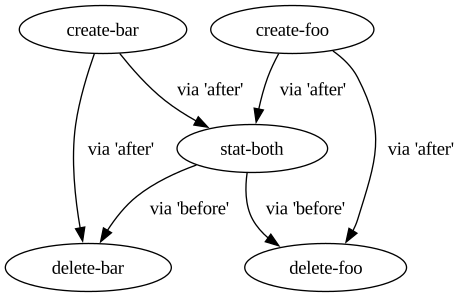
This illustrates the order in which Engage will run each process, what processes
can be run in parallel with each other, and which of before and after
created each dependency edge. This can be useful for debugging dependency cycles
or unexpected ordering between processes in general.
In this graph, create-foo and create-bar will run in parallel, then
stat-both will run by itself, and finally delete-foo and delete-bar
will run in parallel. You may also notice that there are “redundant” ordering
requirements (edges) in this graph, for example, create-foo -> delete-foo is
redundant with create-foo -> stat-both -> delete-foo. While the presence of
create-foo -> delete-foo has no effect on ordering, it is useful to retain it
so that if stat-both (and thus its ordering requirements) are removed in the
future, the intent of running delete-foo after create-foo is preserved.
Running processes
The engage command, when run with no subcommand, will run all processes in the
selected Engage file. While doing so, Engage will forward stdout and stderr
of the processes, alongside an indication of which process is generating the
output, whether the output is coming from the process’ stdout or stderr
(marked with an O or E, respectively), and some extra fluff to make it look
pretty. At the end, Engage will print out whether the run succeeded or failed
and exit with an appropriate status code:
| Status code | Meaning |
|---|---|
0 | All processes exited successfully. |
1 | At least one process exited with an error status code. |
2 | Other errors, such as issues with the Engage file. |
Note that Engage’s own stdout and stderr output is not considered stable.
It’s also possible to use the engage just subcommand to run a subset of the
processes in an Engage file.
If Engage receives the SIGINT signal (e.g. via ctrl+c) while running
processes, it will prevent any more processes from spawning, send SIGINT to
any running processes, and wait for them to exit before exiting.